How to Compress an Image for Email Without Ruining Quality
Make photos and screenshots smaller for email with a simple resize-and-compress workflow that keeps text readable and important details looking clear.
Image Compressor
Make JPEG, PNG and WebP files lighter while keeping the result useful.
Open Image Compressor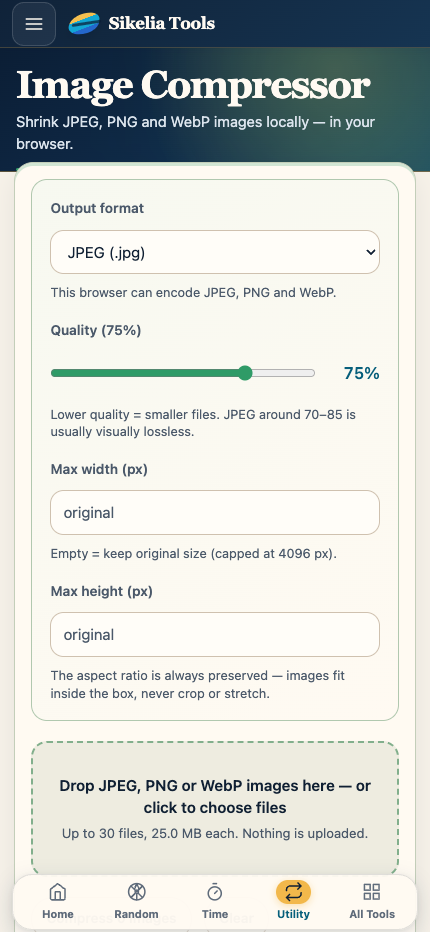
A photo can look perfectly normal on your phone and still be much larger than you need for an email. The easiest fix is usually to create a smaller copy instead of changing the original.
You do not need to understand image formats or technical settings in detail. A simple order works well: resize if the image is huge, compress moderately, then check the result before sending it.
Keep the original image first
Before changing anything, keep the original file where it is. Download or save the compressed version as a separate copy.
That gives you an easy way back if you later need the full-resolution photo for printing, editing or another purpose.
Resize large photos before pushing quality too low
Modern phone photos can be several thousand pixels wide. That is useful for editing and printing, but often unnecessary for an image that will only be viewed inside an email.
If the image is very large, reduce its dimensions first. This can make a big difference to file size while keeping the picture looking natural.
For screenshots, be more careful: small text and interface details can become hard to read if you resize too aggressively.
Compress in small steps
Start with a moderate setting rather than immediately choosing the strongest compression.
After each change, look at the image at a normal viewing size. Pay attention to:
- faces and skin tones;
- small text;
- sharp edges;
- gradients and skies;
- detailed areas such as hair, leaves or fabric.
If the image still looks good and you need a smaller file, reduce the quality a little more. Stop when the size is practical rather than chasing the smallest possible number.
Think about what the recipient actually needs
If someone needs the photo only to view it, a smaller version is usually fine.
If they need to print it, crop it later or use it in a design, compression may not be the right solution. In that case, share the original file using a file-transfer or cloud-storage method instead of reducing its quality just to fit an email attachment.
Photos and screenshots need different treatment
Photographs usually tolerate more compression than screenshots containing text, charts or interface elements.
For a screenshot, prioritize readability. If text becomes fuzzy, increase quality or keep slightly larger dimensions.
For a normal photograph, you can often reduce both dimensions and file size more aggressively without creating an obvious visual difference at everyday viewing sizes.
A quick email workflow
- Open the Image Compressor.
- Add the image you want to send.
- Keep the original file untouched.
- If the photo is much larger than needed, resize it.
- Apply moderate compression.
- Compare the result visually.
- Download the smaller copy.
- Attach that copy to your email.
If the attachment is still too large, repeat with a slightly smaller size or a little more compression.
Check privacy before you send
Compression makes a file smaller; it does not remove information that is visible inside the picture.
Before sending screenshots or photos, check for names, addresses, account details, notifications or anything else you did not intend to share.
The best result is not simply a smaller file. It is a smaller file that still looks good and contains only what you actually want the recipient to see.
Image Compressor
Make JPEG, PNG and WebP files lighter while keeping the result useful.
Open Image Compressor