How to Compress Images Without Uploading Them to a Server
Reduce image size directly in your browser when you want a smaller copy without sending the original photo to an image-processing service first.
Image Compressor
Make JPEG, PNG and WebP files lighter while keeping the result useful.
Open Image Compressor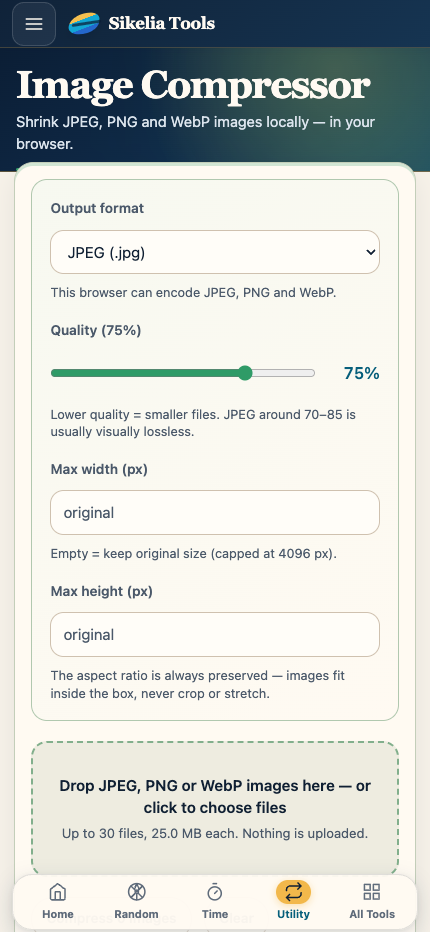
Sometimes you only want to make an image smaller. You do not need an account, a cloud library or another copy of the photo stored somewhere online.
For that kind of task, a browser-based local compressor is convenient: choose the image, adjust the result, download the smaller copy and continue with what you were doing.
When local image compression is useful
This approach is especially handy for screenshots, family photos, documents you photographed for yourself, work-in-progress graphics and other files you do not want to send to a separate image-processing service just to reduce their size.
It also saves time when you are working with a slow connection because the image does not need to make a round trip to a processing server before you can save the result.
What you actually need to do
The workflow should feel like using a normal desktop utility:
- open the Image Compressor;
- choose your image;
- decide whether you also want to resize it;
- adjust quality until the result looks right;
- download the new copy.
You can keep the original untouched and use the smaller version for email, forms, websites, messages or anywhere else a lower file size is useful.
Use resize and compression together
If a photo is extremely large, reducing quality alone is not always the best first move.
A smaller set of dimensions can often reduce the file size more naturally. Then you can use light or moderate compression to finish the job.
For example, a phone photo intended only for a small web profile or an email preview rarely needs the same dimensions as the original camera image.
Check the result before downloading
Look at the preview instead of relying only on the file-size number.
For photos, check faces, detailed textures and smooth color areas. For screenshots, check the smallest text and icons. If something important becomes hard to read, increase the quality or keep a larger size.
You are aiming for a useful balance, not the most aggressive reduction possible.
Remember what compression does not do
Image compression does not hide private information that is visible in a photo or screenshot.
If a screenshot contains an email address, account number, face, notification or other detail you do not want to share, you need to remove or redact that information separately.
Compression only changes how much space the image takes up.
Good situations for this tool
A local image compressor is a good fit when you want to:
- make a photo small enough for an email attachment;
- reduce a screenshot before uploading it to a form;
- create a lighter copy for a website or presentation;
- shrink several personal images one at a time without creating an account;
- keep control of the original file while experimenting with different sizes.
For large professional media pipelines or hundreds of files at once, a dedicated batch workflow may make more sense. But for everyday “make this image smaller” tasks, a browser tool is usually faster and simpler.
The useful part is that you can see the app, try a setting and judge the result yourself before saving anything.
Image Compressor
Make JPEG, PNG and WebP files lighter while keeping the result useful.
Open Image Compressor