How to Convert CSV to JSON Without Breaking Headers or Data
Convert CSV to JSON with a practical workflow for headers, quoted fields, leading zeroes and type-sensitive values, then verify the result before saving it.
CSV / JSON / YAML Converter
Convert CSV, JSON and YAML locally in your browser.
Open CSV / JSON / YAML Converter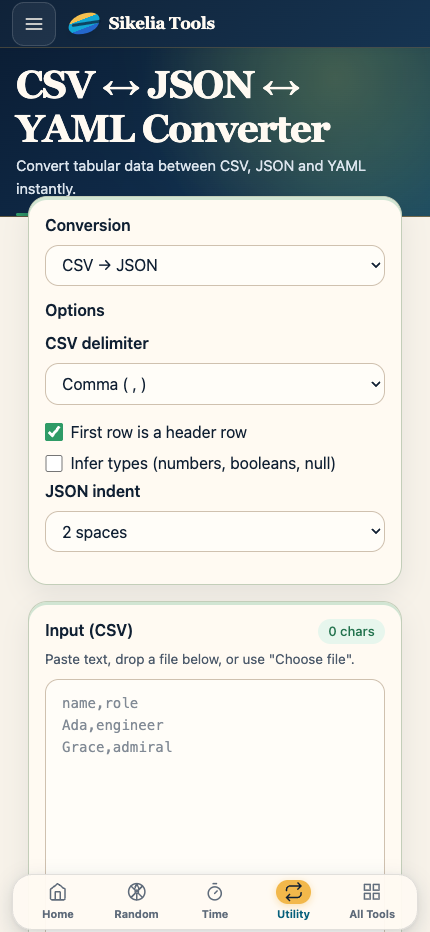
To convert CSV to JSON safely, treat the first row as your headers, parse quoted fields correctly, and decide deliberately whether values such as IDs, dates and leading-zero numbers should stay as text. Then compare a few source rows with the JSON output before you use it elsewhere.
CSV, JSON and YAML can represent similar information in different shapes. For everyday conversions, a reliable workflow is simple: keep the original, inspect a few records, convert, then compare the output before downloading it.
Know what you are starting with
A CSV file is usually a table: rows and columns, often with a header row at the top.
JSON can contain lists, objects and nested information. YAML can represent similar structured data in a more human-readable format.
If your data is a simple table, conversions are usually straightforward. If it contains deeply nested objects, arrays inside arrays or special values, take a little more care when moving it into CSV because a flat table may not represent everything naturally.
Check the CSV headers first
Before converting CSV, look at the first row.
Make sure the column names are what you expect and that the data is split correctly. If all the information appears in one column, the file may use a different separator than you expected.
Also pay attention to values such as:
- postal codes with leading zeroes;
- product IDs;
- phone numbers;
- dates;
- long numbers;
- fields containing commas or quotes.
These may look like ordinary numbers or text but can change meaning if another program interprets them differently later.
Convert a small sample mentally before trusting the full file
If you are converting CSV to JSON, each row will usually become one item with the column headings used as labels.
If you are converting JSON or YAML into CSV, ask whether the information is naturally tabular. A list of similarly shaped records is a good fit. A complicated nested document may need manual cleanup after conversion.
You do not need to understand the file format specification. You only need to confirm that the output still represents the information the way you expect.
Keep the source file
Save the converted result as a new file. Do not replace the only copy of your source data.
That makes it easy to compare values if something looks wrong and gives you a clean starting point if you decide to use different conversion settings.
Why a browser-based converter is convenient
For quick conversions, it is useful to work directly in the browser without creating an account or sending the file to a separate conversion service.
Open the Sikelia Converter, choose or paste your data, select the destination format, review the preview and save the result when it looks right.
This is especially convenient for configuration snippets, small exports, sample datasets and other files you want to reformat quickly.
Check the result before importing it somewhere important
A file can be valid and still not be suitable for the next system.
Before importing converted data into a store, database, analytics tool or other important destination:
- inspect a few records near the beginning and end;
- check IDs and values with leading zeroes;
- confirm dates and booleans look correct;
- make sure nested information was handled the way you expected;
- test with a small import when possible.
Conversion changes the representation of your data. A quick visual check is what turns that conversion into a reliable workflow.
If your output is JSON and you want to check syntax or make nested fields easier to read, continue with the JSON Formatter guide. Formatting an existing JSON document is a different task from converting CSV or YAML into JSON.
CSV / JSON / YAML Converter
Convert CSV, JSON and YAML locally in your browser.
Open CSV / JSON / YAML Converter